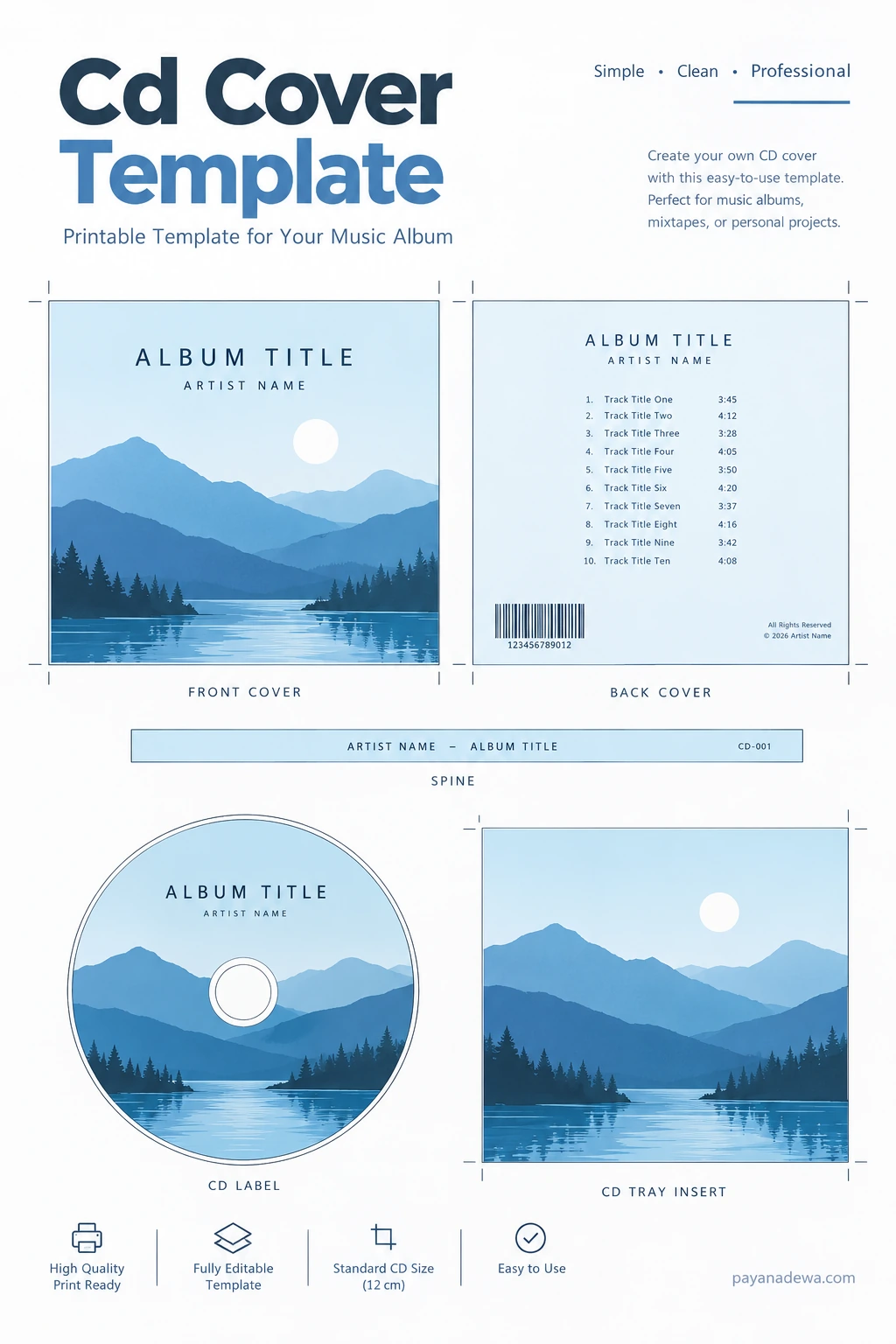
A well-designed CD cover does more than protect a disc. It gives your music, mixtape, audiobook, photo collection, or personal project a recognizable identity. Whether you are preparing a homemade album, organizing a collection of recordings, or creating a thoughtful gift, a reliable CD cover template makes the process easier. It provides a layout for your front cover, back cover, spine, and disc label, helping everything look consistent when printed and assembled.
You do not need advanced graphic design skills to make an attractive CD cover. With a clear idea, suitable artwork, readable text, and accurate measurements, you can create a design that looks neat and professional. This guide explains what a CD cover template includes, how to customize one, which dimensions to check, and how to prepare your finished design for printing.
What Is a CD Cover Template?
A CD cover template is a pre-arranged design layout that helps you create artwork for a compact disc package. Instead of starting with a blank page, you work within marked areas intended for specific parts of the packaging. Depending on the template, it may include a front insert, back insert, spine, tray card, and printable disc label.
Templates are useful for personal music projects, demo recordings, independent releases, school assignments, family photo discs, software backups, and promotional materials. They also help maintain consistent spacing and alignment, especially when several pieces need to fit inside one jewel case.
Common Parts of a CD Cover Layout
- Front cover: Displays the album or project title, artist name, and main artwork.
- Back cover: Often includes the track list, credits, copyright details, and other relevant information.
- Spine: A narrow strip that can show the title and artist name when the case is stored on a shelf.
- Tray insert: The printed panel behind the clear plastic tray, depending on the case style.
- CD label: Artwork designed for the printable surface of a compatible disc. It must leave the center hole and any required printable-area limits clear.
Choose the Right CD Cover Template
Before editing a template, identify the type of case or packaging you plan to use. Standard jewel cases, slim cases, paper sleeves, and custom packaging do not all share the same layout. A design made for one format may not fit another, even if the difference looks small on screen.
Standard Jewel Case
A standard jewel case commonly uses a square front booklet or insert and a separate rear tray card with narrow spine panels. Exact dimensions can vary by template and printer, so check the measurements supplied with your chosen layout and compare them with the physical case. If your template includes a disc label, verify that it is intended for the type of printable disc you have.
Slim Cases and Paper Sleeves
Slim cases are thinner and may use a different insert arrangement. Paper sleeves are often simpler, but they still need accurate folds, margins, and cut lines. Choose a template specifically made for your packaging rather than stretching a standard jewel-case design to fit.
How to Customize a CD Cover Template
A strong design is easy to understand at a glance. Start with the information listeners need most, then add decorative details only when they improve the overall look.
1. Decide on the Visual Theme
Choose a style that suits the contents of the disc. A music album might use photography, illustration, bold typography, or a minimal color palette. A family archive could use a simple title and one meaningful photograph, while a spoken-word project might benefit from a clean, text-focused design. Limit the palette to a few complementary colors to keep the layout cohesive.
2. Add the Title and Artist Name
Make the project title prominent on the front cover. Use a readable font and maintain clear contrast between the text and its background. Include an artist, creator, or organization name when relevant. Avoid placing important text too close to the edges, because trimming and assembly can shift the final result slightly.
3. Prepare the Back Cover Information
For a music CD, arrange the track list in a clear order and use consistent spacing. Add track durations only if you have verified them. You may also include credits, production details, or a copyright notice where appropriate. Keep small text readable at the final printed size; text that looks clear when zoomed in may be difficult to read on paper.
4. Use High-Quality Artwork
Choose an image with enough resolution for the final print size. Low-resolution pictures can look soft or pixelated when enlarged. Make sure you have permission to use the artwork, photographs, logos, and fonts in your project. For a personal design, original photos or graphics are often a simple way to make the cover feel distinctive.
5. Keep Every Panel Consistent
Repeat selected colors, font styles, and graphic elements across the front, back, spine, and disc label. Consistency helps the package feel like one complete design. It is fine for each panel to serve a different purpose, but they should still look related.
CD Cover Dimensions and Print Setup
Accurate sizing is essential. There is no single measurement that works for every CD package, so use the dimensions supplied by the template maker or packaging manufacturer. Check whether the file specifies the finished trim size, the full document size, and any bleed area.
- Confirm the packaging: Measure your case or check its specifications before designing.
- Check print resolution: For image-heavy artwork, 300 pixels per inch at the final size is a common print-quality target.
- Allow for bleed: If the design runs to the edge, extend the background into the template’s bleed area when one is provided.
- Respect safe margins: Keep titles, credits, and other essential details away from trim lines and folds.
- Use the correct paper: Choose paper compatible with your printer and thick enough for the finish you want, while still allowing the insert to fit the case.
- Print at actual size: Select “Actual size” or 100% scale when appropriate, rather than “Fit to page,” which may resize the artwork.
Printer settings and paper handling can affect the result. If color accuracy matters, print a small test first. Check the size with a ruler before cutting the final copy, and make sure the printer has not automatically scaled the page.
Practical Tips for a Cleaner, More Professional Result
- Keep the layout uncluttered. A few well-chosen elements usually work better than many competing graphics.
- Check spelling carefully. Review the title, artist name, track names, credits, and dates before printing.
- Use strong contrast. Dark text on a light background or light text on a dark background is usually easier to read.
- Preview at print size. Zoom out or print a draft to judge whether the type and details remain legible.
- Cut with care. Use a ruler and suitable cutting tool, follow the crop marks, and work on a safe cutting surface.
- Test the fit. Place a draft insert in the case before printing a full batch. The paper should sit flat without buckling.
- Save an editable master. Keep a copy of your original design file so you can update the track list or create another version later.
Common CD Cover Design Mistakes to Avoid
One frequent mistake is choosing a template before checking the case type. This can lead to a spine that is too wide, a rear panel that does not align, or artwork that gets cropped. Another common problem is using a low-resolution image or placing important text too close to the edge.
It is also easy to overlook the disc’s printable area. Not every disc is designed for direct printing, and ordinary paper labels may not be suitable for every disc or drive. Follow the disc manufacturer’s instructions and use compatible printable media and equipment. If the CD will be used for distribution, confirm that all artwork and text are accurate and that you have the necessary rights.
Frequently Asked Questions
Can I Make a CD Cover Without Professional Design Software?
Yes. You can customize a template in many document editors, presentation tools, or graphic design applications. The important points are maintaining the correct dimensions, using clear images, and exporting or printing at the intended scale.
Can I Use a CD Cover Template for a Personal Mixtape?
Absolutely. A template is useful for a personal playlist, gift, demo, or home collection. Add a title, a simple image, and any details that help identify the disc. If you plan to distribute or sell it, check the rights for music, artwork, and other material you include.
Why Does My Printed CD Cover Come Out the Wrong Size?
The print dialog may have scaled the page automatically. Check the document dimensions and select actual size or 100% scale where available. Print a test page and measure it before cutting the final insert.
Should I Include a Barcode or Copyright Information?
Only include details that are relevant and accurate. A personal project usually does not need a barcode. For commercial releases, follow the requirements of your distributor or manufacturer and use correct ownership and licensing information.
Conclusion
A well-prepared CD cover template makes it easier to create packaging that is organized, attractive, and ready to print. Choose a layout that matches your case, use sharp artwork, keep text readable, and verify dimensions before committing to the final print. With a little planning and a careful test print, you can produce a CD cover that looks polished whether it is for a music release, a personal collection, or a special gift.