However, choosing an image involves more than picking a design you like. File format, image quality, licensing, and the intended use all matter. This guide explains what clipart is, where it works best, how to select suitable graphics, and how to use them responsibly.
What Is Clipart?
Clipart is a collection of ready-made illustrations, icons, symbols, or decorative images that people can add to documents and creative projects. Instead of drawing every element from scratch, you can insert a graphic and adjust its size or position to suit your layout. Common subjects include animals, food, holidays, school supplies, plants, shapes, and everyday objects.
Clipart can be simple or detailed. Some designs use flat colors and bold outlines, while others imitate watercolor, hand-drawn sketches, or realistic textures. The term is often written as “clip art” as well as “clipart.” Both forms are widely understood.
Popular Types of Clipart
Vector clipart
Vector graphics are built from paths and shapes rather than a fixed grid of pixels. As a result, they can usually be resized without becoming blurry. SVG and EPS are common vector formats, although the software you use must support the file type. Vector clipart is useful for logos, posters, signs, and designs that need to work at different sizes.
PNG clipart with a transparent background
PNG images can preserve transparency, which makes them convenient for layering a graphic over a colored background, photo, or document. Transparent PNG clipart is popular for invitations, slides, digital planners, and social media graphics. Check the edges before using an image; a low-quality file may show unwanted halos or jagged outlines.
JPG and raster illustrations
JPG files are common for illustrations with a solid background or subtle color blends. They do not support transparent backgrounds, and repeated saving can reduce image quality. Raster images also have a set pixel size, so enlarging a small file too much may make it look soft or pixelated.
Printable and themed clipart
Printable clipart is designed for materials such as worksheets, labels, flashcards, party decorations, and craft projects. Themed collections may focus on birthdays, seasons, animals, classroom activities, or business presentations. A consistent set can make a project look coordinated without requiring advanced design skills.
How to Choose the Right Clipart
A useful graphic supports the purpose of your content instead of distracting from it. Before downloading or inserting an image, consider these points:
- Match the audience: Friendly cartoon images can work well for children’s activities, while clean icons may suit reports or business slides.
- Keep a consistent style: Choose illustrations with similar line weight, color treatment, and level of detail.
- Check the resolution: Use a sufficiently large image for print. For digital use, test it at the size readers will actually see.
- Look for transparency when needed: A transparent PNG or a compatible vector file is often easier to layer than an image with a white box behind it.
- Consider contrast: Make sure the graphic remains visible against the background and does not compete with important text.
- Review the license: Confirm whether the image allows personal, educational, or commercial use, and whether attribution is required.
When in doubt, preview the image in the final layout. A graphic that looks attractive on its own may feel too busy beside a headline or too small when printed.
Where Can You Use Clipart?
Clipart is flexible because it can support both practical information and decoration. For example, teachers can use simple pictures to illustrate vocabulary, build matching games, or make activity sheets easier to scan. Parents and hobbyists can add themed illustrations to invitations, calendars, scrapbook pages, and handmade cards.
At work, icons and small illustrations can clarify presentation slides, explain a process, or make an internal guide more approachable. Website owners may use suitable graphics in blog posts, banners, and downloadable resources. In each case, choose images that help the reader understand the content rather than adding decoration without a clear purpose.
How to Use Clipart in a Design
Start with a simple layout
Decide where the image should sit before adding several decorative elements. Leave enough open space around it, and align it with nearby text or other graphics. A clear layout usually feels more professional than a page filled with images.
Resize without losing quality
When possible, resize vector artwork for different uses. If you are working with a PNG or JPG, avoid stretching a small image beyond its intended size. Keep the original file so you can return to it if you need a different crop or dimension.
Use color with purpose
Repeat one or two colors from your design in the surrounding text, borders, or headings. This creates visual unity. If the clipart is already colorful, use a quieter background so the illustration remains easy to see.
Check the finished result
Preview the design on the screen and, when relevant, print a test page. Check for cropped edges, awkward spacing, low contrast, and text that becomes hard to read. For accessible digital content, provide meaningful alternative text for informative images. If an image is purely decorative, follow the accessibility rules of your platform so screen readers can skip it when appropriate.
Finding Free Clipart and Understanding Licenses
Many websites offer free clipart, but “free to download” does not always mean “free for every use.” Some files are available only for personal projects. Others may be used commercially if you credit the artist, while certain collections require a paid license. Read the terms for the exact file or collection instead of relying on the website’s general label.
Keep a simple record of the source, creator, license, and download date for graphics used in commercial work. Do not assume that an image is public domain just because it appears in search results or on social media. If the license is unclear, choose a graphic with explicit terms or create an original illustration.
Also, avoid redistributing a clipart pack as your own download unless the license clearly permits it. Using an image inside a finished worksheet or design is different from repackaging and reselling the original files.
Common Clipart Mistakes to Avoid
- Mixing unrelated styles: Combining glossy 3D art with rough line drawings can make a page feel inconsistent.
- Using low-resolution images for print: Pixelated edges can reduce the quality of otherwise thoughtful work.
- Ignoring the background: A white rectangle may appear around a file that was expected to be transparent.
- Overdecorating: Too many graphics can make the main message difficult to find.
- Skipping license checks: An attractive image is not automatically cleared for commercial use.
- Forgetting accessibility: Add appropriate alternative text when an image conveys information that readers need.
Practical Tips for Better Clipart Projects
For reliable results, organize downloaded images into clearly named folders, such as “school,” “holidays,” or “business icons.” Keep a copy of the license information alongside commercial assets. Use descriptive file names so you can find a graphic later, and avoid downloading multiple near-identical versions unless you need them.
Next, test the image in the application where you plan to use it. Some programs handle SVG or transparency differently, so a quick preview can reveal compatibility issues early. Finally, remember that a few well-chosen graphics are often more effective than a large collection of competing illustrations.
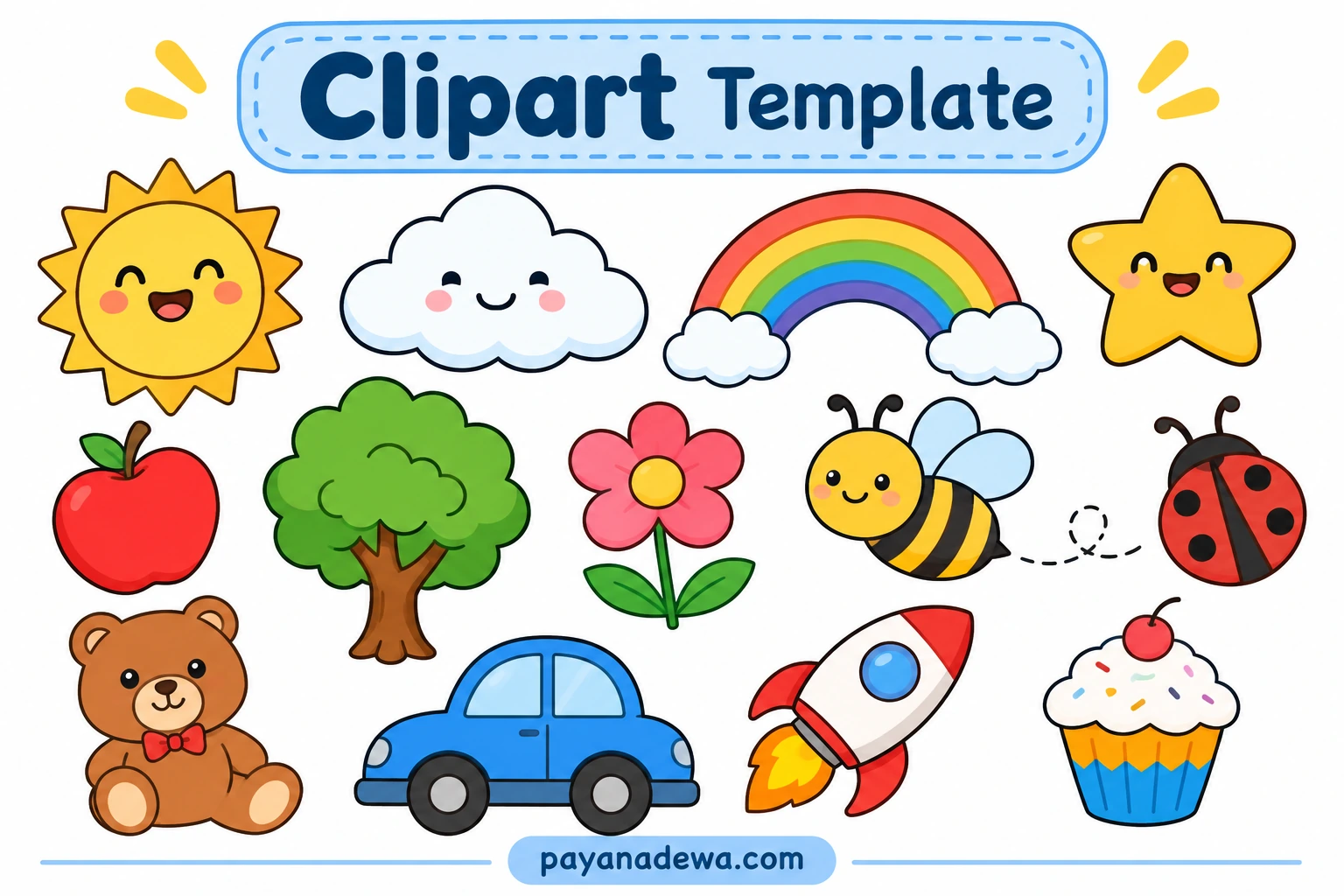
Clipart Template Example
A themed clipart sheet can help you plan a consistent visual style before creating worksheets, printable pages, or digital content. The example below uses friendly, colorful illustrations with clear outlines, making it suitable as visual inspiration for a cheerful project. Adapt the layout to your own needs and make sure any assets you publish have the appropriate usage rights.
Conclusion
Clipart is a practical way to make documents, learning materials, presentations, and personal projects more engaging. The best results come from choosing graphics that suit the audience, using a compatible file format, keeping the layout uncluttered, and checking image licenses before publishing. With a consistent visual style and a little planning, even simple illustrations can make your content clearer and more memorable.